Installing GoinLabs software: the Windows and Mac warning explained
The first time you open our software, your computer may show a warning. It doesn't mean anything is wrong with the software. Windows and macOS warn about every app that is new and hasn't been downloaded by a very large number of people yet. The message only appears on the first start.
Windows: "Windows protected your PC"
- Click More info.
- Check the file name (e.g. GoinVault-Setup.exe) and click Run anyway.
- Installation starts. Done.

If your browser already warns ("isn't commonly downloaded"): in Edge click the three dots, then Keep; in Chrome click Download anyway or Keep.
Mac: "… Not Opened" / "Apple could not verify …"
- Click Done in the message (not "Move to Trash").
- Open System Settings, then Privacy & Security and scroll all the way down.
- Click Open Anyway next to the app, enter your Mac password and confirm with Open Anyway.
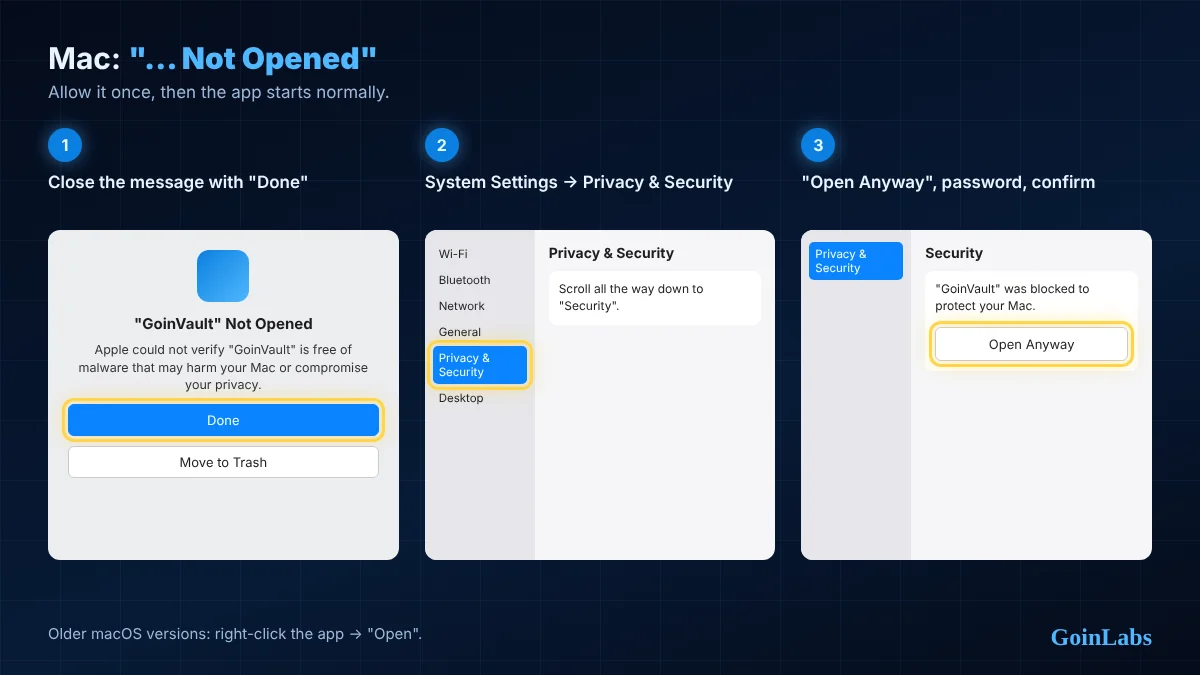
From now on the app starts normally. Older macOS (up to macOS 14): right-click the app, choose Open, then Open again.
Mac tip: double-click the ZIP file and drag the app into Applications first, then open it.
Is it safe?
Yes, as long as you download the file directly from www.goinlabs.com. The warning only means Windows or Apple doesn't know the new app yet. Never download our software from other sites.
For IT departments
SHA-256 checksums of the current GoinVault files. Questions: info@goinlabs.com.
| File | SHA-256 |
|---|---|
| GoinVault-Setup.exe | 8a346a05d082d7f45771de9680682c50cd34667684b371d2b6d58909ad5ae2dc |
| GoinVault-Agent-Setup.exe | 44fe3aa6e5ee2b53f17a370eb75b73c358b28ce96d32fa8e69ba985afa93c3c8 |
| GoinVault-Mac-AppleSilicon.zip | cfc2a26e531ca5605242c7a6cd5fce804985fe2f5d3574a2cc7148265cdd2a22 |
| GoinVault-Mac-Intel.zip | dd51af05792ac97942f5a84517c66c3b410dc8026d9494b1f941ba87782cf7dd |
Windows says "Windows protected your PC": what now?
Click More info, check the file name, then click Run anyway. The message appears only on the first start of a new app.
Mac says the app was not opened: what now?
Click Done, open System Settings, Privacy and Security, scroll down and click Open Anyway, then confirm with your Mac password. Older macOS: right-click the app, then Open.
Ready to install?
Download straight from our site and follow the short steps above.